Updated 27 October 2026 · By MyDMU
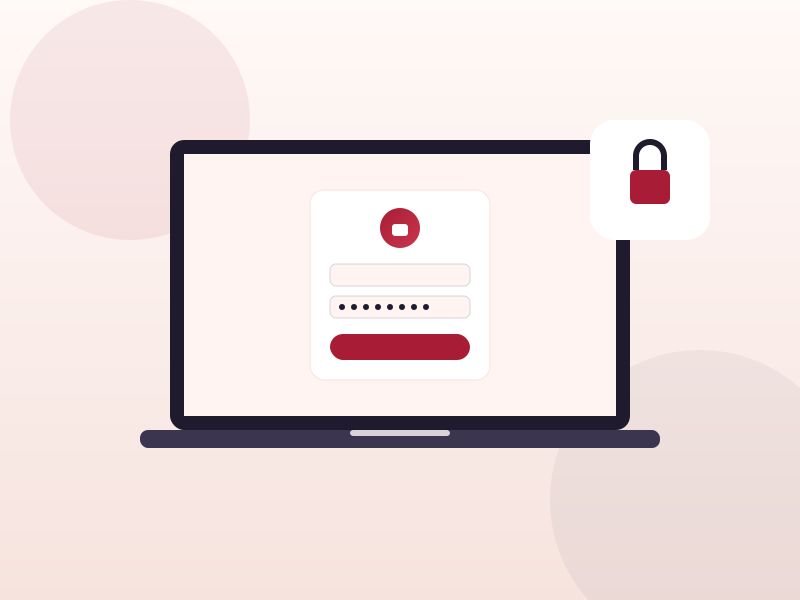
MyDMU sits behind your university account, so every visit starts with a sign-in. The process is short, but a few details catch people out, especially the first time. This guide walks through the web portal and the mobile app.
You need your DMU username (your P-number, usually in the form P1234567) and the password you set during enrolment. If you have set up multi-factor authentication on your account, keep your phone nearby because the authenticator prompt appears during sign-in.
Your MyDMU login is the same university account you use for email and LearningZone. There is no separate password for the portal.
The MyDMU app opens with a single sign-in button. Tap it and the same university login page loads inside a secure browser view. After a successful sign-in, the app may ask you to confirm you are a current student before the home screen appears. That extra confirmation step is normal.
Several students report being asked to log in again each time they open the app. In most cases the cause is the security policy on the university account rather than the app itself. Session length is controlled centrally, so the app cannot override it.
Things that help: keep the app updated, do not clear app data unless you are troubleshooting, and allow the app to stay in the background rather than force-closing it after every use.
Password resets are handled by the university's self-service password tool, not inside MyDMU. Follow the "forgotten password" link on the sign-in page, verify your identity, and set a new password. Give it a few minutes before signing in to MyDMU again so the change spreads across all services.
 MyDMU