Updated 27 October 2026 · By MyDMU
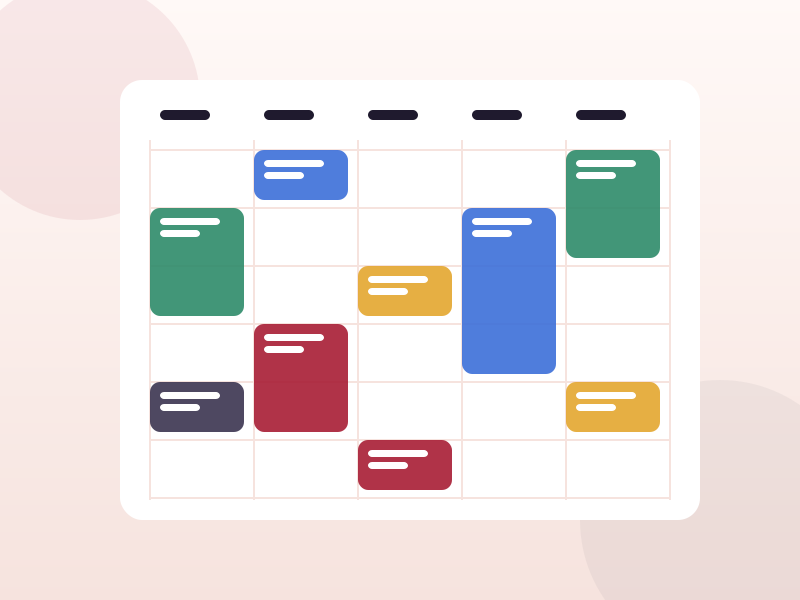
The timetable is the most used part of MyDMU. It shows every lecture, seminar, lab and workshop you are enrolled on, with the room and the member of staff leading the session.
On the app, the timetable sits on the home screen and under its own tab. On the web portal, open the Timetable tile. Both views pull from the same central timetabling system, so they always match.
Tap any session to open the campus map pinned at that building. This saves time during the first fortnight.
The app offers a day view for quick checks, a week view for planning, and a list view that scrolls through upcoming sessions. Swipe left or right to move between weeks. Term dates and reading weeks are marked so empty weeks are not a surprise.
When a room or time changes, the timetable updates automatically and a push notification is sent if you have alerts on. The changed session is highlighted for a short period so you can spot it at a glance.
If a module you are enrolled on does not appear, the cause is almost always one of these:
Contact your faculty student advice centre for registration issues. For a wrong room or clash, use the report option in the app or email the IT service desk with the module code and the date.
Calendar export is a frequently requested feature. The developers have said it is planned. Until it arrives, the week view is the most reliable way to see your schedule alongside personal commitments.
 MyDMU