Updated 27 October 2026 · By MyDMU
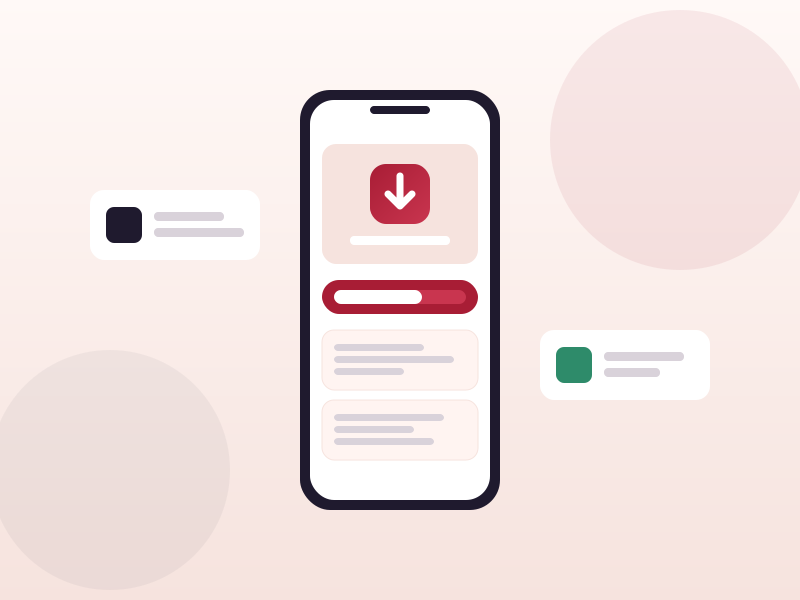
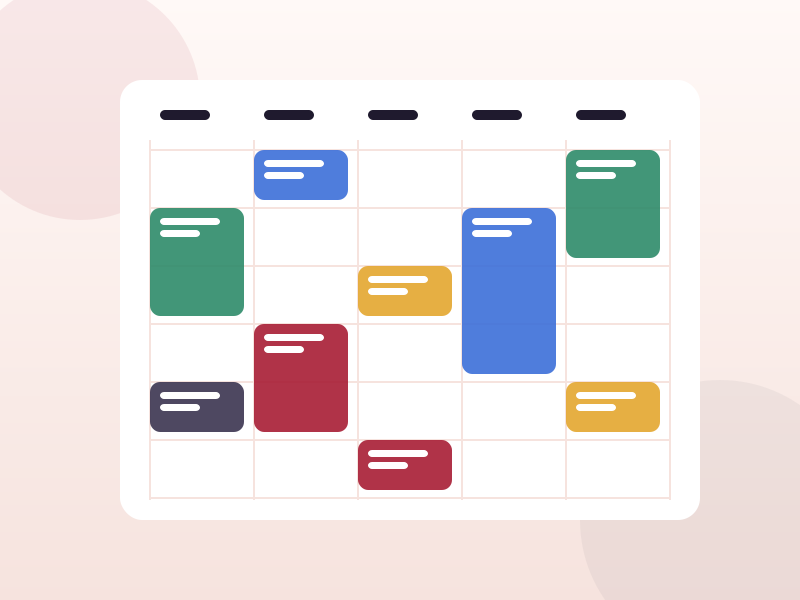
The MyDMU app brings your timetable, messages, events and campus information into one place on your phone. Installing it takes about two minutes. Here is what to expect on both platforms.
Only install MyDMU from Google Play or the App Store. Copies hosted elsewhere may be outdated or altered.
Dark mode. The app follows your phone theme by default. You can force light or dark from the settings screen.
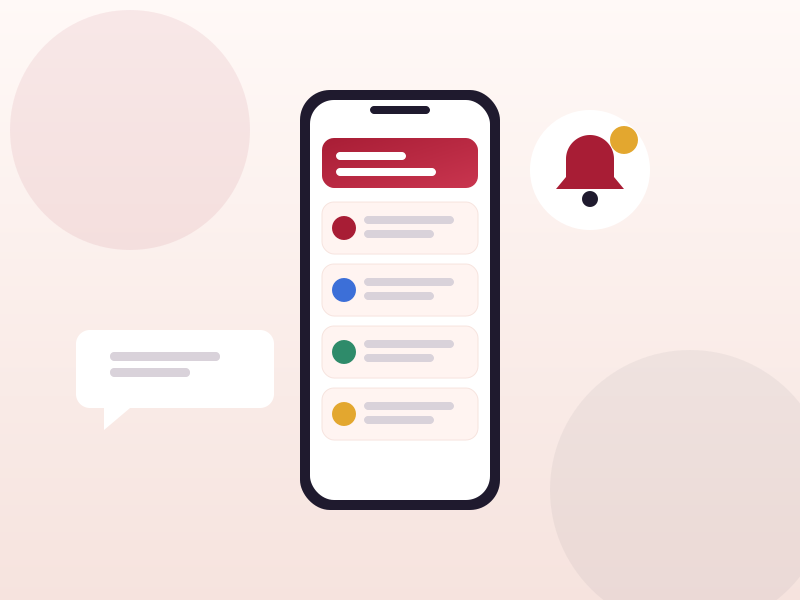
Notifications. Turn on alerts for timetable changes at a minimum. Event reminders are optional and easy to switch off later.
Home screen layout. The home screen adapts to your situation, so a first-year student sees different tiles from a final-year student. If something looks missing, pull down to refresh.
The app stores very little on your phone. Timetable and message data are fetched each time you open it, so a connection is needed for fresh information. On campus Wi-Fi this is instant; on mobile data it uses only a few kilobytes per session.
Updates arrive through the normal store mechanism. Automatic updates are the easiest option. If the timetable looks wrong or a feature mentioned in the release notes is missing, check the store for a pending update first.
Uninstalling the app does not delete anything from your university account. Reinstall it at any time and sign in again. This is also the quickest fix for an app that refuses to open after a phone OS update.
 MyDMU