Updated 27 October 2026 · By MyDMU
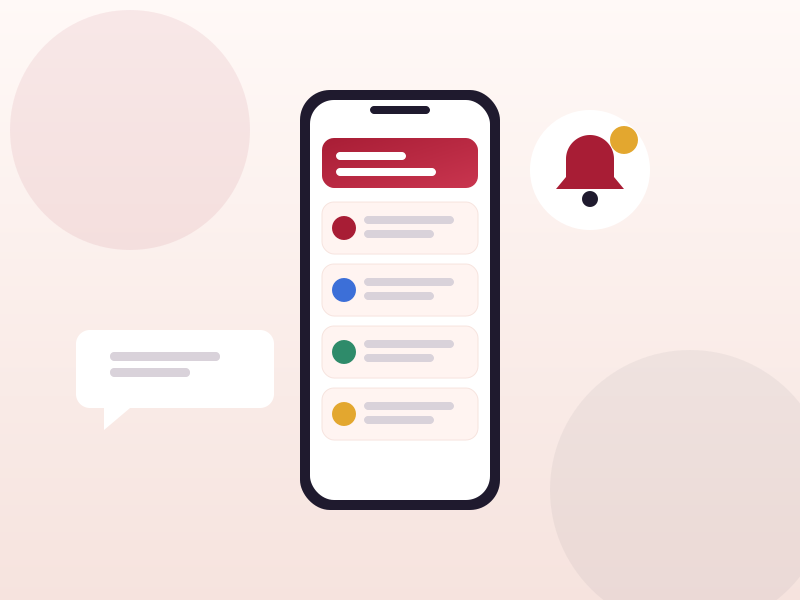
MyDMU uses two channels to reach you: push notifications on your phone, and messages that live inside the app and portal. Knowing the difference helps you avoid missing something important without being overwhelmed.
These are short alerts that appear on your lock screen. MyDMU sends them for:
Control them from the app settings screen. You can keep timetable alerts on while switching off event reminders, which is a sensible default for most people.
The messages area holds announcements from the university, your faculty and student services. They stay in the app until you archive them, so nothing is lost if you swipe a notification away. Unread messages show a badge on the app icon.
Messages in MyDMU do not replace university email. Formal communication about your course, assessments and results still arrives by email.
Android keeps a notification log you can open from system settings. On iPhone, swipe down from the top of the lock screen to see recent alerts. The in-app messages area is the most reliable record because it does not depend on the phone keeping a copy.
MyDMU itself does not have a quiet-hours setting, but both Android and iOS let you schedule do-not-disturb windows. Timetable changes are rarely sent overnight, so a simple 11pm to 7am schedule works well.
 MyDMU